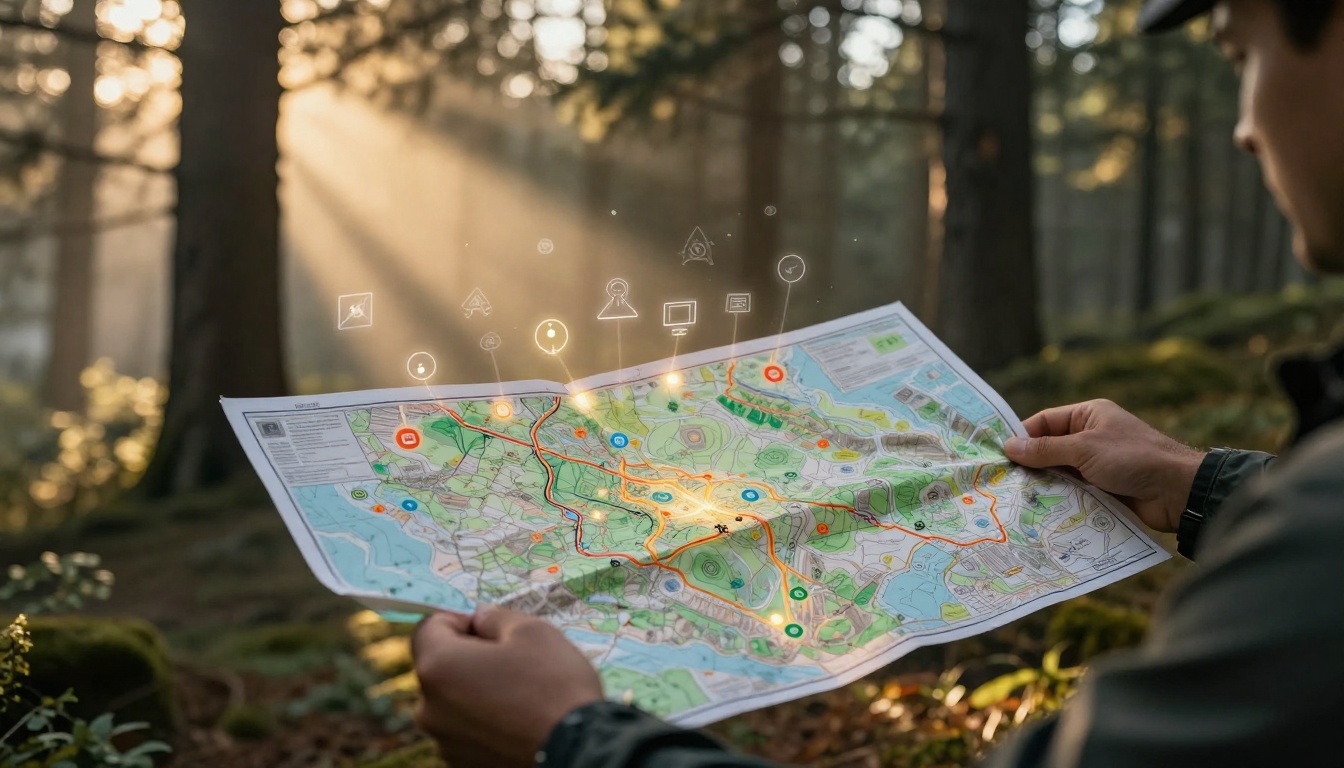
Picture this: You’re a hiker deep in the woods. You pull out your map to find the trail back. But those squiggles and colors baffle you. One wrong turn, and you’re lost for hours. Stories like this happen to travelers, drivers, and students every day.
A map legend solves that puzzle. It acts as a simple guide in a box, usually tucked in a corner. This key explains symbols, colors, lines, and scales so you know what everything means. Master it, and you avoid mistakes. Plus, you gain confidence for any trip.
This post breaks it down. You’ll learn core elements like map symbols and scales. Then, follow steps to read legends fast. See examples from Google Maps and Apple Maps. Finally, check 2026 digital trends. By the end, you’ll tackle any map legend without a hitch.
Uncover the Core Parts of Every Map Legend
Every map legend shares basic building blocks. These include symbols for points, colors for areas, and scales for distances. Spot them quickly, and the whole map clicks into place. Legends often group items logically: points first, then lines, areas last.
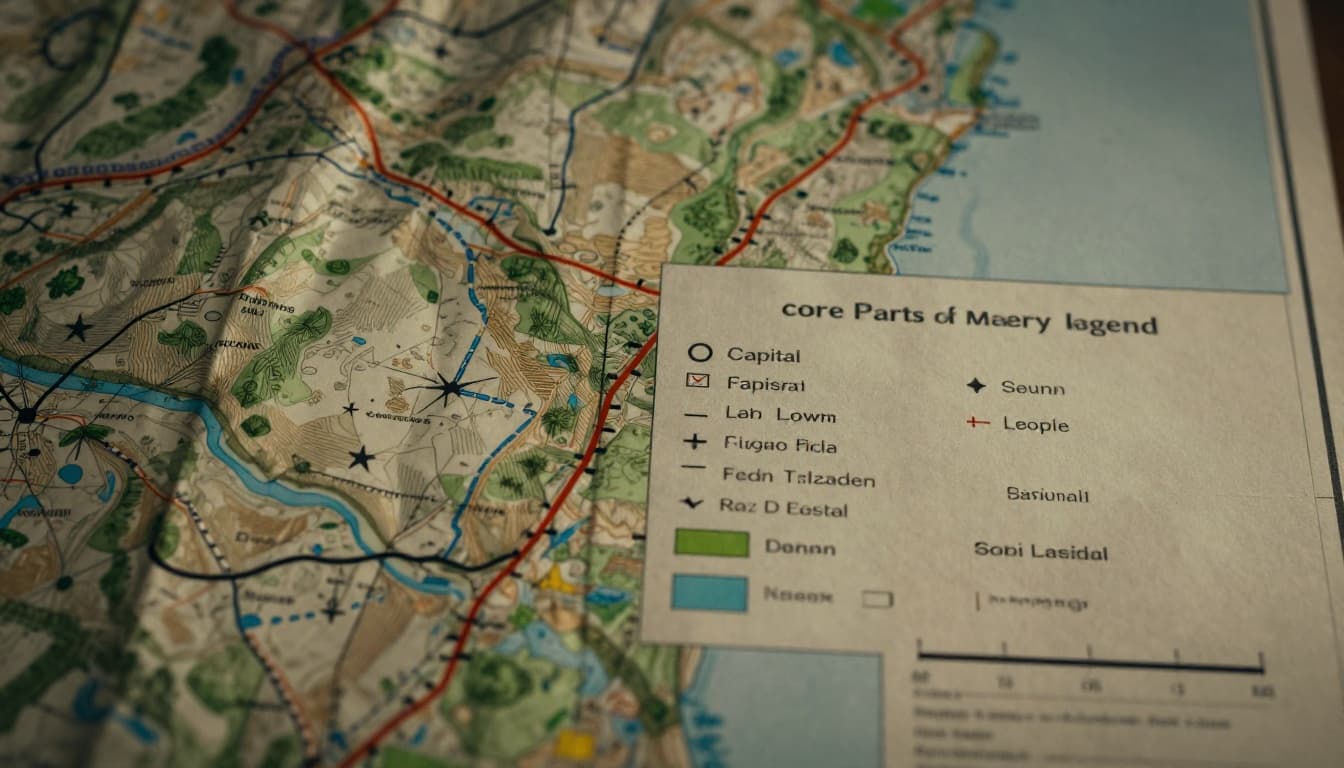
Think of the legend as a cheat sheet in the corner. It matches the map exactly in size, shape, and color. For instance, a star marks a capital city. A solid red line shows highways. These parts help you decode fast.
For more on these basics, check What’s on a Map Legend? Symbols, Scale, and More Explained.
Symbols: Tiny Icons That Reveal Big Details
Symbols pack the most punch in point and line features. Point symbols use dots or icons. A circle stands for a city; bigger ones mean larger populations. A plus sign (+) flags hospitals. Books mark schools.
Line symbols guide paths. Solid red lines mean highways. Dashed blue ones show rivers. Black thick lines signal railroads. Ever spot a squiggly blue line? It often traces a river.
Groupings speed things up. Roads cluster together; water features do too. Match exactly, because small differences matter. A thin dashed line might be a trail, not a road. Practice this, and symbols become second nature.
Colors: Quick Clues to Landscapes and Features
Colors fill areas and hint at what’s there. Green shades forests or parks. Blue covers lakes and oceans. Roads pop in red or orange. Yellow might mean deserts or open land.
Shades add layers. Darker green signals dense woods; lighter shows sparse ones. Gradients work for data like population: deeper colors mean more people. Or traffic: redder means slower.
Modern maps help color-blind users with patterns too. Dots or stripes pair with hues. Blue always suggests water. Train your eye on these, and landscapes jump out at a glance.
Scales: Turn Map Measurements into Real Distances
Scales bridge map to reality. Bar scales look like rulers; they stay fixed when you zoom. Ratio scales say 1:2,000,000, so one inch equals two million inches on ground.
Use them like this: Points five centimeters apart? If one centimeter equals one mile, that’s five miles. Digital maps auto-adjust as you zoom. Always check scale first for trip planning.
Simple math saves time. A bar scale ignores units; just compare lengths. Next time you measure a route, you’ll nail distances right away.
Follow These Steps to Read Map Legends Flawlessly
Reading a legend takes practice, but these steps make it foolproof. Start with the box, match features, then build from there. You’ll cut confusion on road trips or hikes.
- Locate the legend box. It hides in corners or edges most times.
- Match map features exactly. Check size, shape, color. Ignore rotation.
- Grab the scale early. Measure distances first.
- Follow groupings. Roads bunch up; parks do too.
- Scan extra text. Dates or notes add context.
Skip obvious ones like “P” for park. Focus on tricks. Practice creates “aha” moments. Logical order helps you fly through.
Locate and Match Features Without Second-Guessing
Hunt the box first; it’s your starting point. Then, scan the map for odd marks. Cover the legend, guess what it means, then check. This builds speed.
Exact matches rule. A fat red line won’t match a skinny one. Size matters too; big circles equal big cities. No second-guessing once you train your eye.
Handle Tricky Parts Like Gradients and Extras
Gradients go light to dark for more intensity. Darker red? Heavier traffic. Scales shine in action: align your finger to the bar.
Extras include dates or projections. Digital maps add taps or voice. Build step-by-step, and confidence grows. You’ll handle any curveball.
See Map Legends in Action on Google and Apple Maps
Apps like Google and Apple Maps tuck legends in menus. But once you find them, skills apply right away. Layers reveal colors and icons you use daily.
Traffic colors shift: green means fast, red slow. Parks stay green; rivers blue. Practice here transfers to paper maps too.
Google Maps: Layers and Colors Demystified
Open layers in Google Maps. Blue lines trace rivers; orange-red show highways. Traffic overlays green for smooth, purple for jams. For details on these, see Google Maps colours explained.
Scale bars sit at the bottom; they shrink as you zoom out. Hover or tap icons for pop-ups. Roads group by type. This setup demystifies daily drives.
Apple Maps: Icons and Terrain Shades Explained
Apple Maps uses white for major roads, greens for terrain. Transit icons like buses or trains pop up. Shades in 3D show heights; darker means taller.
Check Apple Maps icons and symbols meanings for a full list. Auto-scale adjusts on your phone. Tap for more on points like restaurants.
Gear Up for 2026 Digital Map Legend Changes
Maps evolve fast in 2026. Legends hide in tooltips or menus to save space. Interactive hovers show meanings on demand.
AI auto-generates legends for your view only. Dynamic ones list just visible features, like nearby parks. Color-blind support adds patterns and high contrast.
AR overlays guide in real time. Google Maps’ Immersive Navigation, launched March 2026, uses 3D arrows and lane previews. Voice explains symbols as you go. Personalization tailors it all.
These shifts make reading easier on phones. Stay sharp, and no surprises hit during navigation.
Mastering map legends starts with core parts like symbols, colors, and scales. Follow the steps to match features fast. Apps like Google and Apple Maps bring it to life, while 2026 trends like AI and AR simplify more.
Anyone can do this with practice. Grab your next map or app. Test a legend on a drive or hike. Share your old confusion stories in the comments below.
Next adventure, lead with confidence. Understand map legends without confusion, and the world opens up. Sign up for our newsletter for more navigation tips.