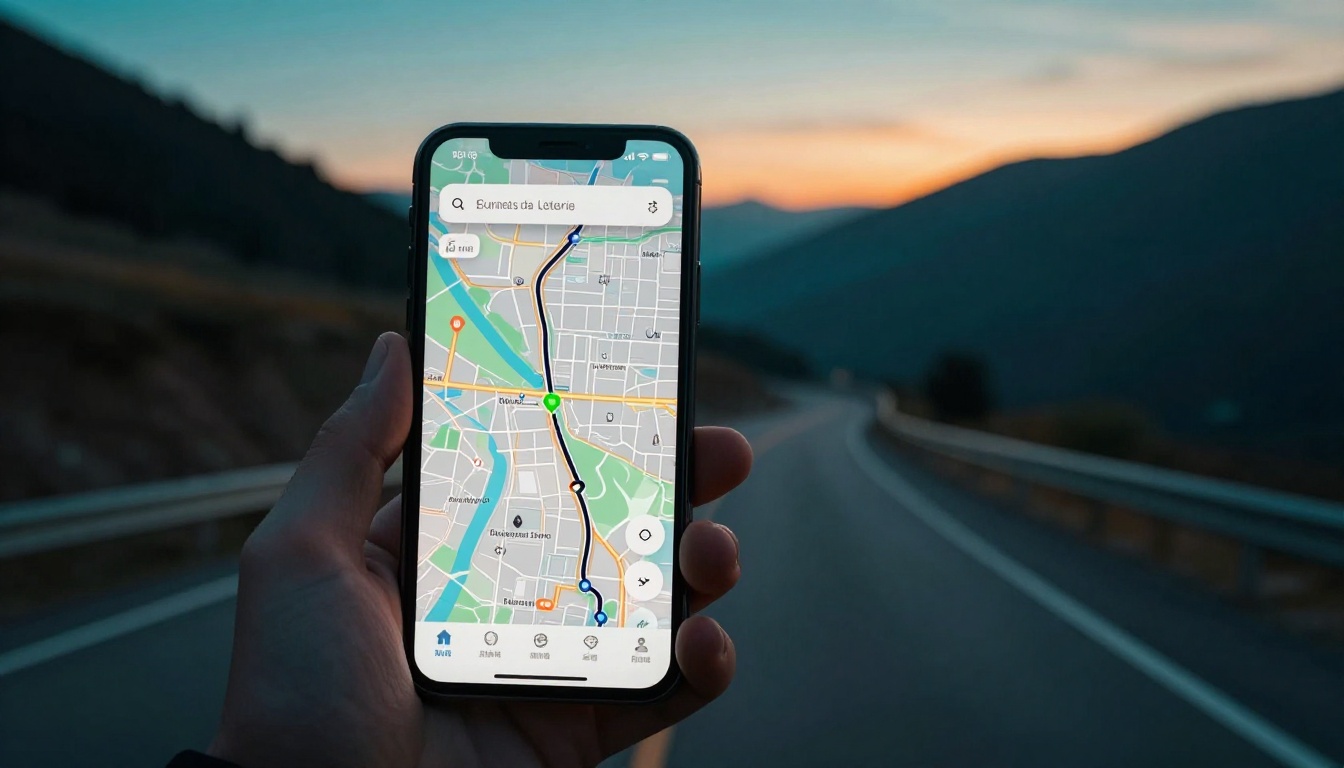
Picture this. You’re on a road trip through the Rockies, but your old paper map leads you straight into a dead-end construction zone. Frustration hits hard. Luckily, apps like Google Maps, Apple Maps, and Waze change everything in 2026.
These tools deliver real-time traffic updates, clear voice directions, and smart routes. You dodge jams, use maps offline, and handle multi-stop trips with ease. Google Maps works on any phone with broad coverage. Apple Maps shines on iPhones for smooth integration. Waze crowdsources alerts from drivers. HERE WeGo excels offline.
This guide walks you through picking an app, setting it up, getting directions, pro tips, and fixes. Follow these simple steps. You’ll navigate anywhere with confidence.
Pick the Right Map App to Match Your Trips
Your choice depends on daily drives, hikes, or spotty signal areas. All top apps stay free in 2026. Start with your phone type and travel style. Urban commuters love traffic smarts. Off-road fans need offline power.
Google Maps leads for most users. It covers 220 countries with sharp details. Apple Maps fits iPhone owners best. Waze beats jams through driver reports. HERE WeGo handles no-signal zones well. For pure offline, try Organic Maps, MAPS.ME, or OsmAnd too.
Check out PCMag’s 2026 navigation app tests for hands-on scores.
Google Maps for All-Around Reliability
Google Maps tops lists because it runs on Android or iOS. You get real-time data, multi-stop routes, and voice turn-by-turn guidance. Download offline maps for any region ahead of time.
In March 2026, new AI from Gemini rolled out in the US. Ask Maps chats like a friend for spots like “tacos with takeout nearby.” Immersive Navigation adds 3D views of buildings, lanes, and lights. See more at Google’s Maps update page.
CarPlay and Android Auto connect seamlessly. It handles everyday drives or long hauls.
Apple Maps for Apple Fans
Apple Maps comes built-in on iPhones. It offers live traffic and simple interfaces. Voice guidance works well with CarPlay.
Multi-stop routes lag a bit compared to rivals. Still, it suits quick city trips. No major 2026 changes hit US users. Stick to it if you avoid app switches.
Waze to Outsmart Traffic
Waze thrives on crowd reports. Drivers flag accidents, jams, and police. Fun alerts keep you engaged.
It reroutes fast during rush hour. Pairs with Android Auto too. No big offline focus, so pair it with data.
Offline Champs Like HERE WeGo
HERE WeGo shines without internet. Download maps for clean 3D views and speed limits. It covers cars, walks, or transit.
Organic Maps, MAPS.ME, and OsmAnd offer similar free offline downloads. Pick these for hikes or remote areas. All stay reliable in 2026.
| App | Best For | Offline Strength | Traffic Smarts |
|---|---|---|---|
| Google Maps | All trips | Good (downloads) | Excellent |
| Apple Maps | iPhone drives | Fair | Good |
| Waze | City jams | Weak | Best |
| HERE WeGo | No signal | Excellent | Solid |
This table shows quick matches. Free apps cover most needs first.
Set Up Your App for Trouble-Free Starts
Prep now to avoid mid-trip hassles. Download and update your chosen app from the store. Turn on location services right away.
On iPhone, go to Settings > Privacy & Security > Location Services, then enable for the app. Android users head to Settings > Location > App permissions. Allow precise location.
Enable notifications and voice output too. Pair with CarPlay or Android Auto if you drive. Download offline maps before travel. In Google Maps, tap your profile, Offline maps, Select your own map. HERE WeGo mirrors this process.
Charge your phone fully. Mount it securely. Customize settings like miles over kilometers or avoid tolls. Test a short route nearby first.
Grant Permissions and Download Maps
Permissions unlock GPS and mic for voice. Skip them, and directions fail.
For offline, connect to WiFi. Search your area in the app. Hit download. Files take 100-500MB per city. Do this at home.
Follow These Steps to Get Directions Fast
Google Maps works as the main example here. Other apps follow similar flows. Open the app anytime.
Search bars sit at the top. Voice search speeds things up too.
- Tap the search bar. Type an address, business, or “coffee near me.”
- Pick from suggestions. Hit the Directions button (blue arrow icon).
- Choose your mode: car, walk, bike, or transit icons.
- Review the route. Green means smooth; red signals jams. Tap Start for voice nav.
Share your ETA with friends via the share icon.
Search Your Spot and Pick Directions
Voice beats typing on the go. Say “navigate to airport.” Results show photos and ratings.
Long-press the map for exact spots. Directions button appears below.
Choose How You Travel and Go
Mode icons change routes smartly. Car avoids pedestrian paths. Transit lists buses with times.
Hit Start. Volume rises automatically. Screen auto-zooms on turns.
Add Extra Stops Without Hassle
Tap the + icon after picking directions. Search your next spot.
Drag stops to reorder. Google handles optimized paths. Apple Maps limits this; Waze shines here too.
Unlock Smart Tips for Smarter Navigation
Check routes before starting. Crank voice volume high. Save home or work as favorites for one-tap access.
Update apps weekly for fresh data. Pack a portable charger; GPS drains batteries fast. Use hands-free mounts always.
Report road issues in Waze or Google. It helps everyone.
Prep Offline Maps and Favorites
Download big regions like states. Save lists for trips.
Favorites pop up instantly next time.
Dodge Traffic and Customize Routes
Layers show traffic colors: green flows, yellow slows, red stops.
Toggle avoids for ferries or highways. Reroutes save time.
Solve Glitches Before They Ruin Your Day
Apps lag sometimes. Close background tasks first. Restart your phone.
No directions? Check location permissions and internet. Offline fails mean low storage; free space on WiFi.
Crashes call for updates or reinstalls. No voice? Bump volume or re-grant mic access.
Quick checklist:
- Force close and reopen app.
- Toggle airplane mode 10 seconds.
- Clear cache in settings.
- Switch apps if issues persist.
Most fixes take under a minute.
You now know the core steps: pick your app, set it up, search and start routes, add tips. Download Google Maps or your favorite today. Test a local drive.
Keep eyes on the road; let voice guide you. What’s your go-to app or worst glitch story? Share in comments. Subscribe for more practical guides. Hit the road freely.